 Setlist Helper
Metronome for Android
Setlist Helper for Android has a metronome function to use when viewing lyrics. This will only appear if your lyrics are ChordPro, image, or PDF.
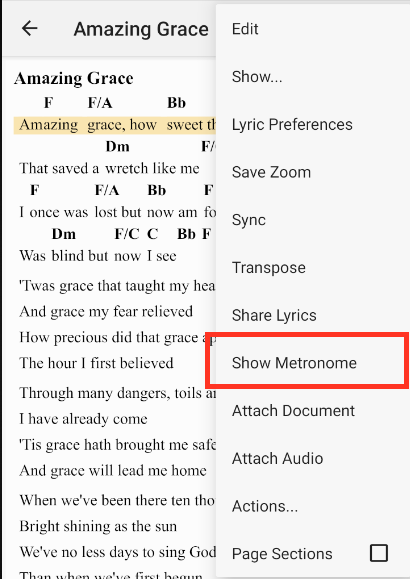
To open the metronome, tap one of the songs in the song list. This will take you to the Lyrics view. Tap the menu button with three dots in the upper right corner. Choose "Show Metronome". If the metronome is visible, the menu will say "Hide Metronome".
The metronome will appear at the bottom of the screen. When the metronome starts, it will flash on the respective beat and make a clicking noise. This sound cannot be changed.
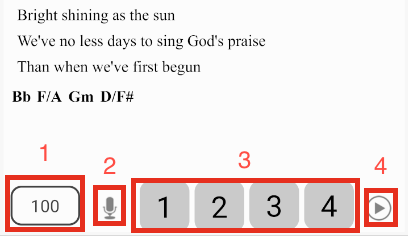
- Tempo - This shows the current tempo of the song. Tap the tempo view and a dialog will open where you can adjust the tempo and time signature.
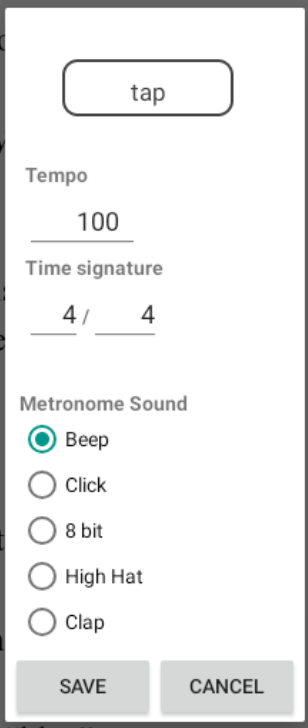
At the top of the dialog, you can "tap" to adjust the tempo. Also, you can edit the tempo manually in the tempo edit field. In addition, you can change the time signature.
- Mute - This will mute the clicking noise without adjusting the volume of your device.
- Tempo Display - The numbers will flash on the respective beat. When you adjust the first number of the time signature, the number of beats will be displayed on the metronome. The maximum number of beats the metronome will display is 6.
- Play - This button will start and stop the metronome.
Playing the Metronome for a Specific Number of Beats
You can play the sound of the metronome for the number of beats that you specify on the "Actions" dialog. More information: Actions and Automation.